Video tool
Sequence provides a comprehensive video tool that allows users to interact seamlessly with their uploaded videos.
Overview of the Video Tool
The video tool in Sequence acts as an intuitive player that enables users to play, pause, and navigate through their videos. It also provides essential information such as playback time and current position within the video. Let's explore the key features of this tool.
Key Features of the Video Tool
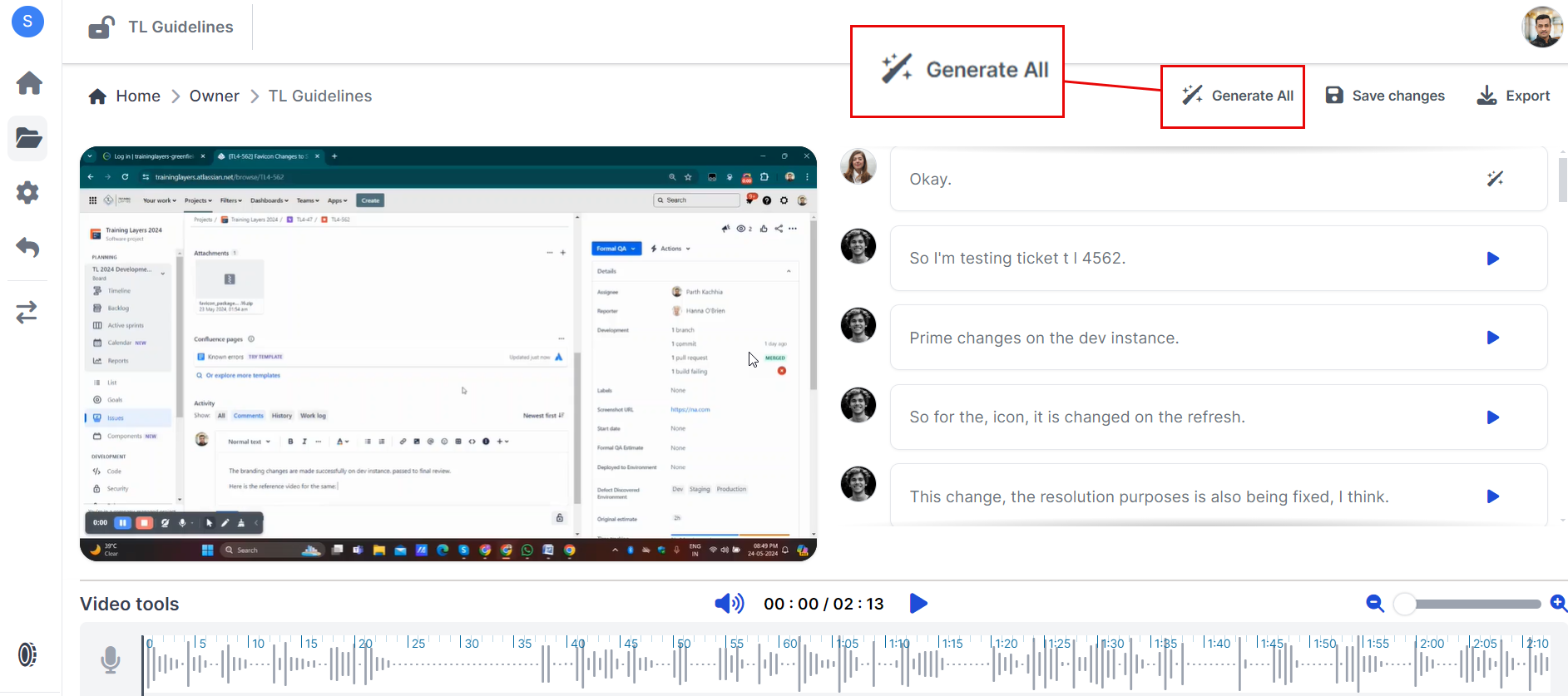
- Playback Controls
- Play/Pause Button: This fundamental control allows users to start or stop the video at any point. It's essential for managing how you view and edit your content.
- Seek Bar
- Interactive Timeline: The seek bar is a visual representation of the video's timeline. Users can click or drag along this bar to move to specific times within the video, making navigation straightforward and efficient.
- Time Display
- Current Time/Total Duration: This feature shows both the current playback time and the total duration of the video. For example, "00:42 / 05:29" indicates that 42 seconds of a 5-minute and 29-second video have been played.
- Thumbnails Navigation
- Preview Thumbnails: Small images representing different segments of the video are displayed as thumbnails. These help users quickly identify and navigate to specific parts of the video without having to scrub through blindly.
- Waveform Visualization
- Audio Levels: The waveform provides a visual representation of audio levels throughout the video. Peaks and troughs in the waveform indicate varying audio intensities, which can be useful for identifying significant audio events or transitions.
- Volume Control
- Volume Slider: Allows users to adjust the audio level of the video easily. This control is typically represented by a speaker icon followed by a slider, enabling precise audio adjustments.
- Zoom Functionality
- Zoom Slider: This feature allows users to zoom in or out on the video's timeline for more detailed navigation. It’s particularly useful for making precise edits or closely examining specific sections of the video.
Benefits of Using the Video Tool
- Real-Time Control: Easily manage your recording sessions without interrupting workflow.
- Flexibility: Pause and resume recordings as needed, ensuring you capture only what’s necessary.
- Convenience: Quickly stop or delete recordings directly from the widget interface.
- Enhanced User Experience: The draggable feature ensures that critical parts of your screen are not obstructed during recording.
Need Help?
If you need further assistance with using the video tool in Sequence, feel free to reach out to our support team via support@adoptsequence.com.