Setting Your Default AI Voice
Sequence offers powerful AI tools for video editing, including the ability to change and set default voices for your videos. This guide will help you understand how to set up and customize your default voice.
Setting Up Default Voice
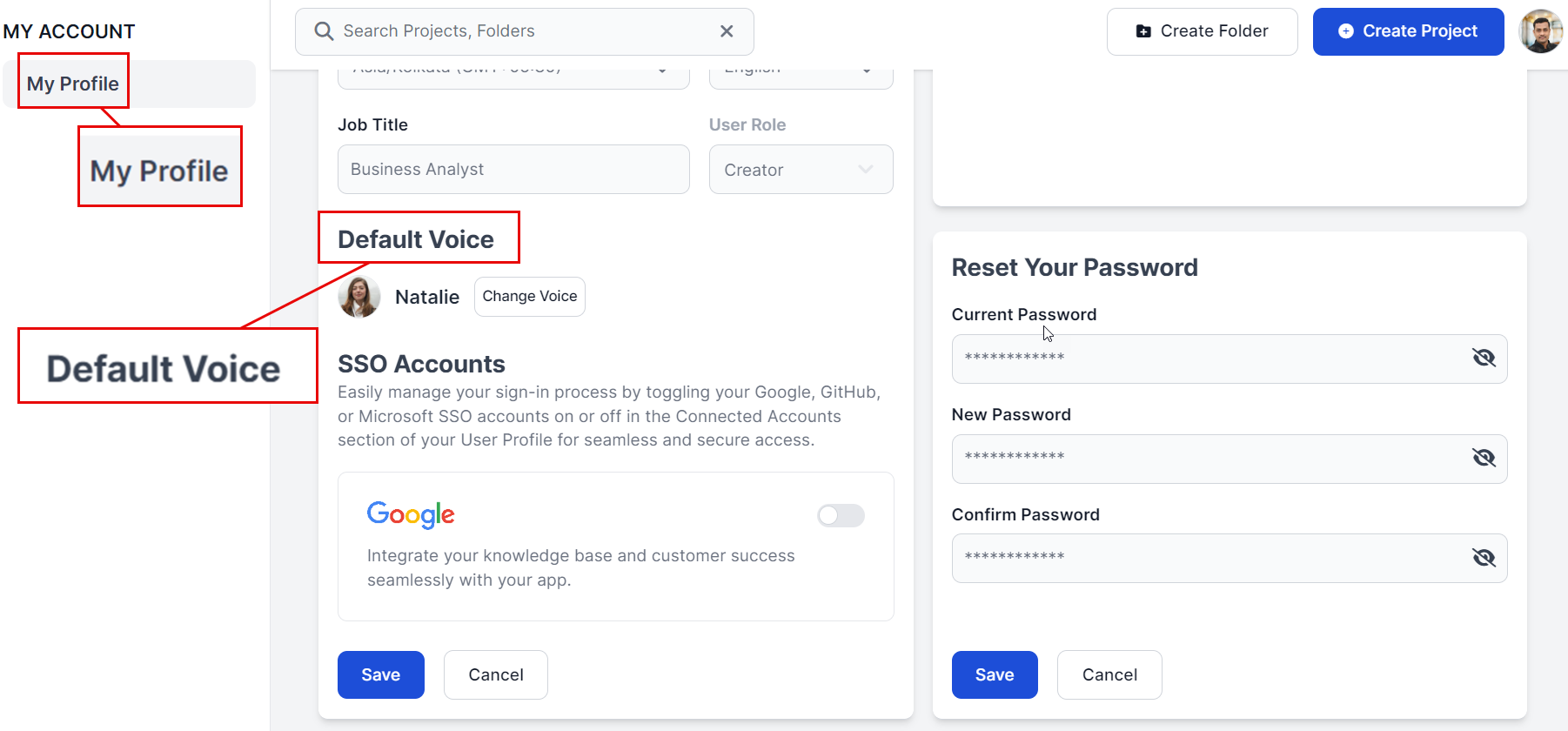
1. From Your Profile
Once you have successfully logged into the Sequence portal, you can set up your default voice from your profile settings.
- Navigate to Profile Settings: Click on your profile icon from top right and select "Your Profile"
- Select Default Voice: Choose "Default Voice" from the settings menu.
2. During Onboarding
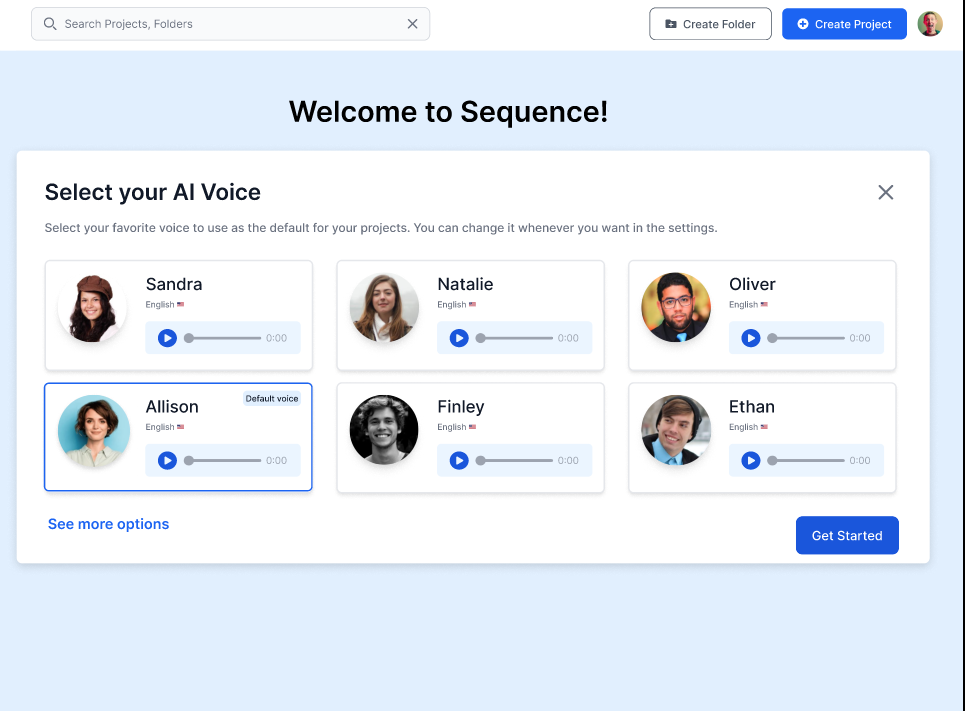
When you first sign up and log into the Sequence portal, you have the option to set up your default voice during the onboarding process.
- Select Your AI Voice: During onboarding, you will be prompted to "Select your AI voice."
- Skip Option: If you choose to skip this step during onboarding, you can always set up your default voice later from the profile settings as described above.
Customizing Your Default Voice
Sequence allows users to select and customize their default AI voice with various options:
1. Select AI voice : User can select pre-built AI voices from (Sandra, Natalie, Oliver, Allison, Finley, Ethan)
2. Speech Behavior : User can select speech behavior from (Calm, Happy, Sad, Inspirational)
3. Speech Value in %
4. Pitch Value in % (the relative highness or lowness of a tone)
Using Default Voice in Video Editing
Once you have set your default voice, it will be applied automatically when you start editing videos. However, you can still change this voice during the video editing process:
- Edit Video: Upload and start editing a video in Sequence.
- Change Voice: Select different AI voices for different generated text chunks as needed.
Need Help?
If you need further assistance with setting up or customizing your default voice, feel free to reach out to our support team via support@adoptsequence.com.