Recording Videos with Chrome Extension
Sequence offers two main ways to proceed with video editing: uploading an existing video or recording a new one using the Sequence Chrome extension. This guide focuses on how to create and edit a video by recording it through the Sequence extension.
Why Use the Sequence Chrome Extension?
The Sequence Chrome extension provides several key benefits that enhance your video creation and editing experience:
- Seamless Integration: Directly record videos within your browser and seamlessly integrate them into your Sequence projects.
- Efficiency: Quickly capture screen activities, voice narrations, and interactions without needing additional software.
- Enhanced Presentation: Utilize features like the highlighter cursor to make your recordings more engaging and easier to follow.
- Flexibility: Easily switch between recording new content and uploading existing videos, all within the same interface.
Getting Started with the Sequence Extension
Install the Sequence Extension
Before you can record videos, you need to install the Sequence Chrome extension. Follow these steps to get started:
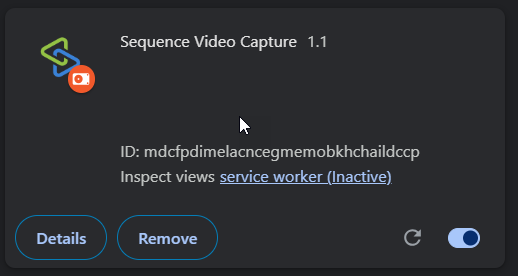
- Visit the Chrome Web Store: Search for "Sequence Extension" in the Chrome Web Store.
- Install the Extension: Click on "Add to Chrome" and follow the prompts to install the extension.
- Enable Permissions: Ensure you grant all necessary permissions for the extension to function correctly.
Recording a Video with the Extension
Create a New Project
The process begins similarly to uploading a video:
- Navigate to Your Space: Log into your Sequence account and select the space where you want to create your project.
- Create a Folder: If needed, create a new folder to organize your projects.
- Create a Project: Within the folder, create a new project.
Start Recording with the Extension
Once your project is set up, you can start recording:
-
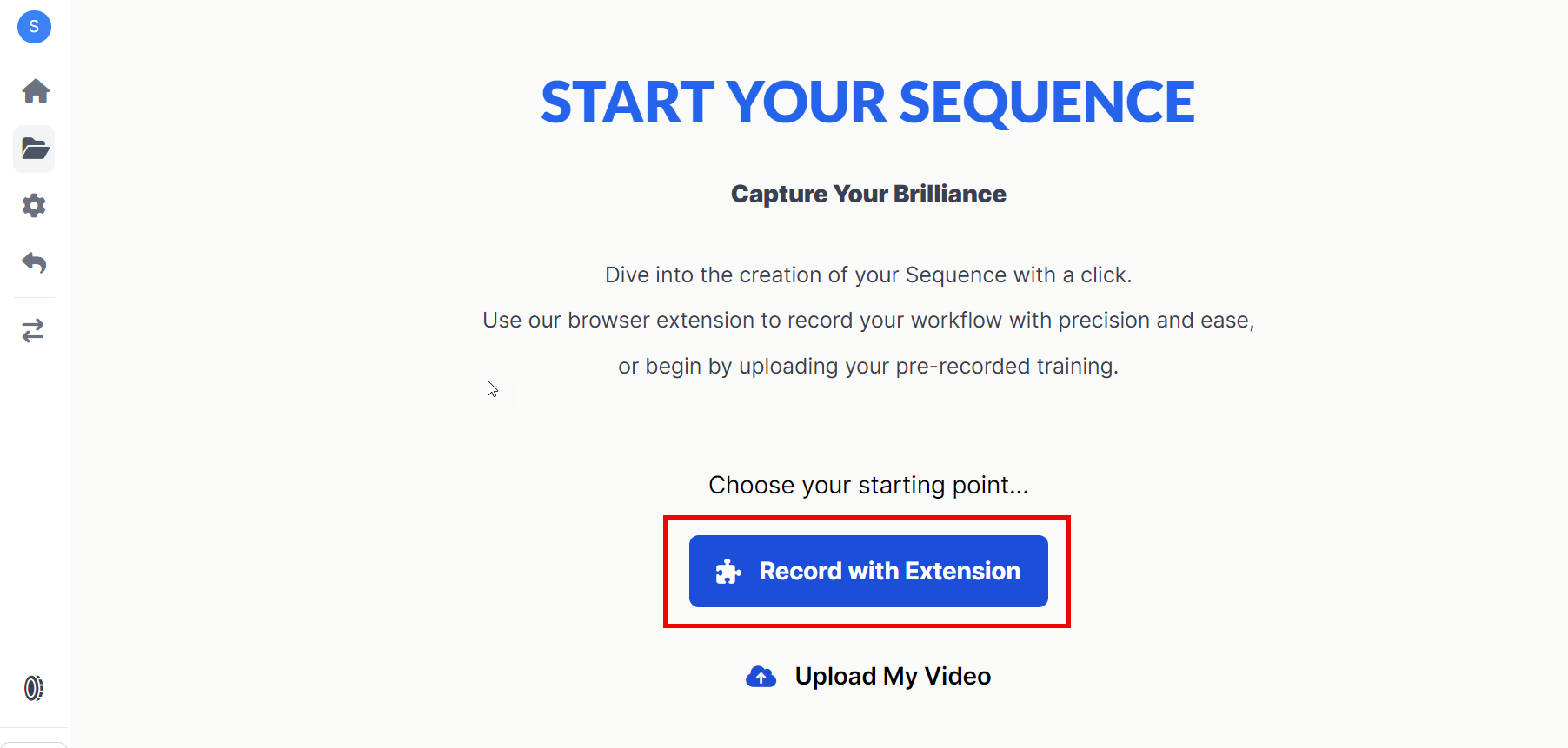
Select "Record with Extension": In your project dashboard, click on the "Record with Extension" option.
-
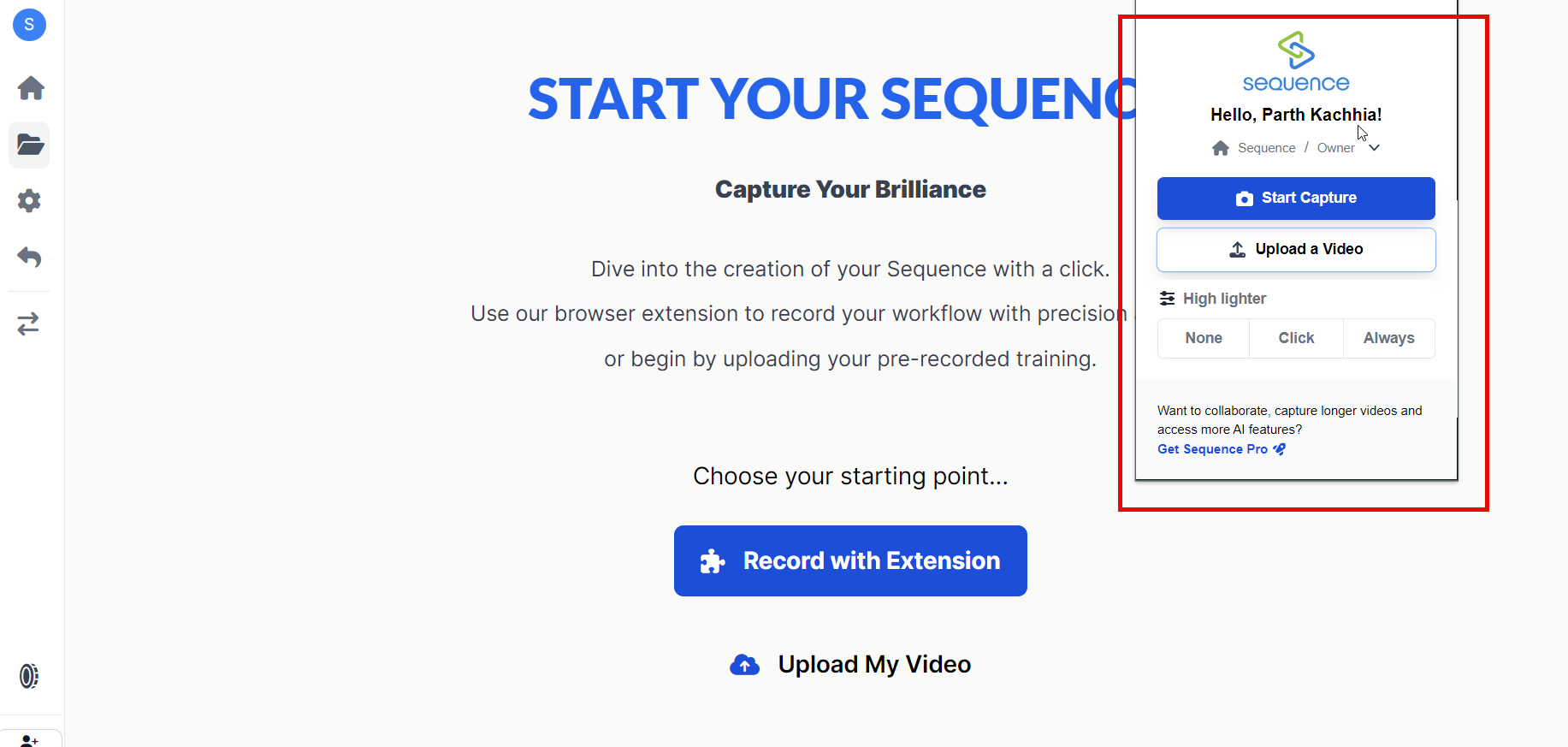
Extension Widget Opens: The Sequence extension widget will open, allowing you to start recording.
Recording Options
Using the extension, you can perform the following actions:
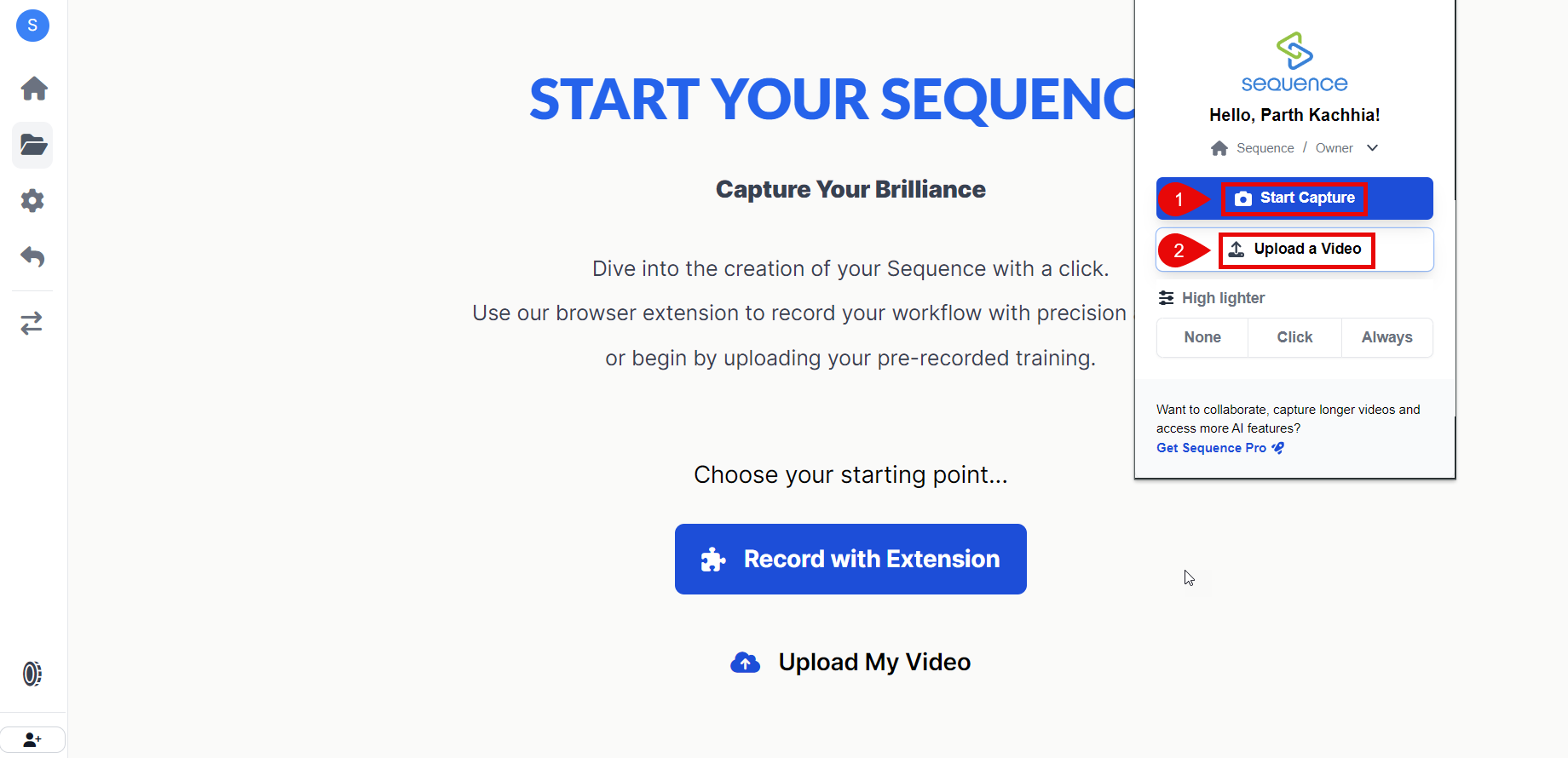
1. Start Capture
- Start Recording: Click on "Start Capture" to begin recording your screen along with audio from your microphone.
Include Voice: Ensure your microphone is enabled if you want to include voice narration in your recording.
2. Upload Existing Video
- Upload Video: If you prefer, you can upload an existing video from your system directly through the extension.
Highlighter Cursor Feature
The Sequence extension includes a "Highlighter Cursor" feature that enhances your presentation by highlighting cursor movements and clicks during recording. You can choose from three options:
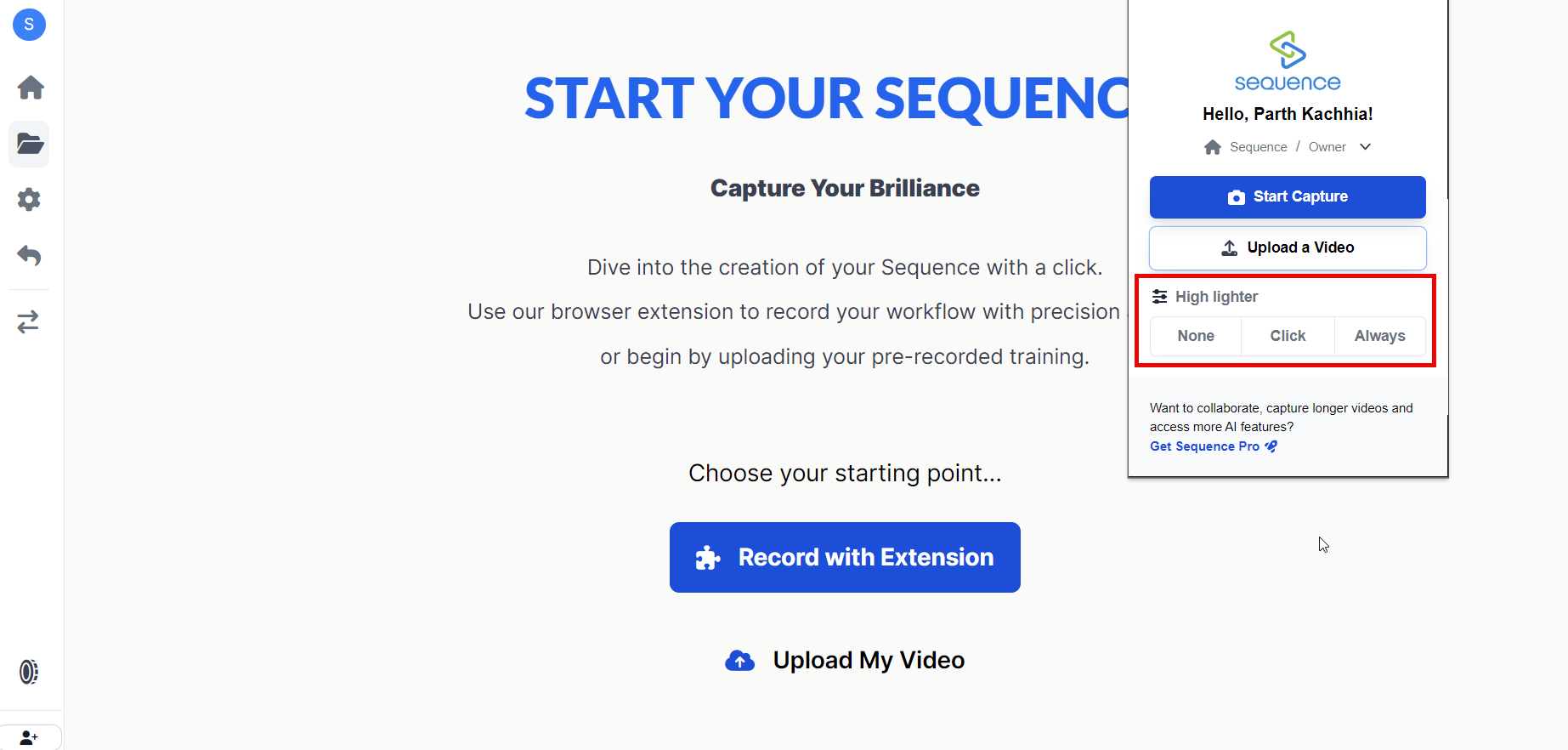
- None
- Description: No cursor highlighting will be applied. This is useful if you do not want any visual emphasis on cursor movements.
- Click
- Description: The cursor will be highlighted only when you click. This helps viewers follow specific actions and understand what elements are being interacted with.
- Always
- Description: The cursor will always be highlighted, regardless of clicks. This ensures that viewers can continuously track cursor movements throughout the recording.
Stop Recording and Proceed to Editing
Once you have finished recording:
- Stop Recording: Click on the stop button in the extension widget.
- Redirect to Project Dashboard: The system will automatically redirect you back to your project dashboard.
- Edit Your Video: You can now proceed with editing your recorded video using Sequence's powerful AI tools, similar to how you would edit an uploaded video.
Important Notes
- Ensure that all necessary permissions are granted for the Sequence extension to function correctly.
- Use the highlighter cursor feature judiciously based on your presentation needs.
- Finalize all edits before exporting, as changes made after exporting will require another export process.
Need Help?
If you need further assistance with creating or editing videos using the Sequence Chrome extension, feel free to reach out to our support team via support@adoptsequence.com.