Previewing and Finalizing Your Edited Video
The "Preview to Complete" feature in Sequence is the final step in your video editing process. After making all necessary changes and edits, this feature allows you to review your video one last time before finalizing and downloading the edited version.
Why Use "Preview to Complete"?
Using the "Preview to Complete" feature ensures that:
- Accuracy: All edits have been applied correctly.
- Quality Control: The final video meets your expectations in terms of content and quality.
- Final Confirmation: You have a chance to make any last-minute adjustments before exporting the video.
Steps to Use "Preview"
- Navigate to Project Dashboard
- Once all edits are finalized, navigate to your project dashboard where you can initiate the final preview.
- Complete All Edits
Ensure that all necessary edits are completed before proceeding to preview:
- Edit Text Blocks: Review and edit all text chunks to correct any inaccuracies and customize the script.
- Apply AI Voices: Apply or update AI-generated voices to match the edited text blocks.
- Generate One Block or Generate All: Use these features to preview individual blocks or all changes.
- Click "Preview"
Follow these steps to finalize your video:
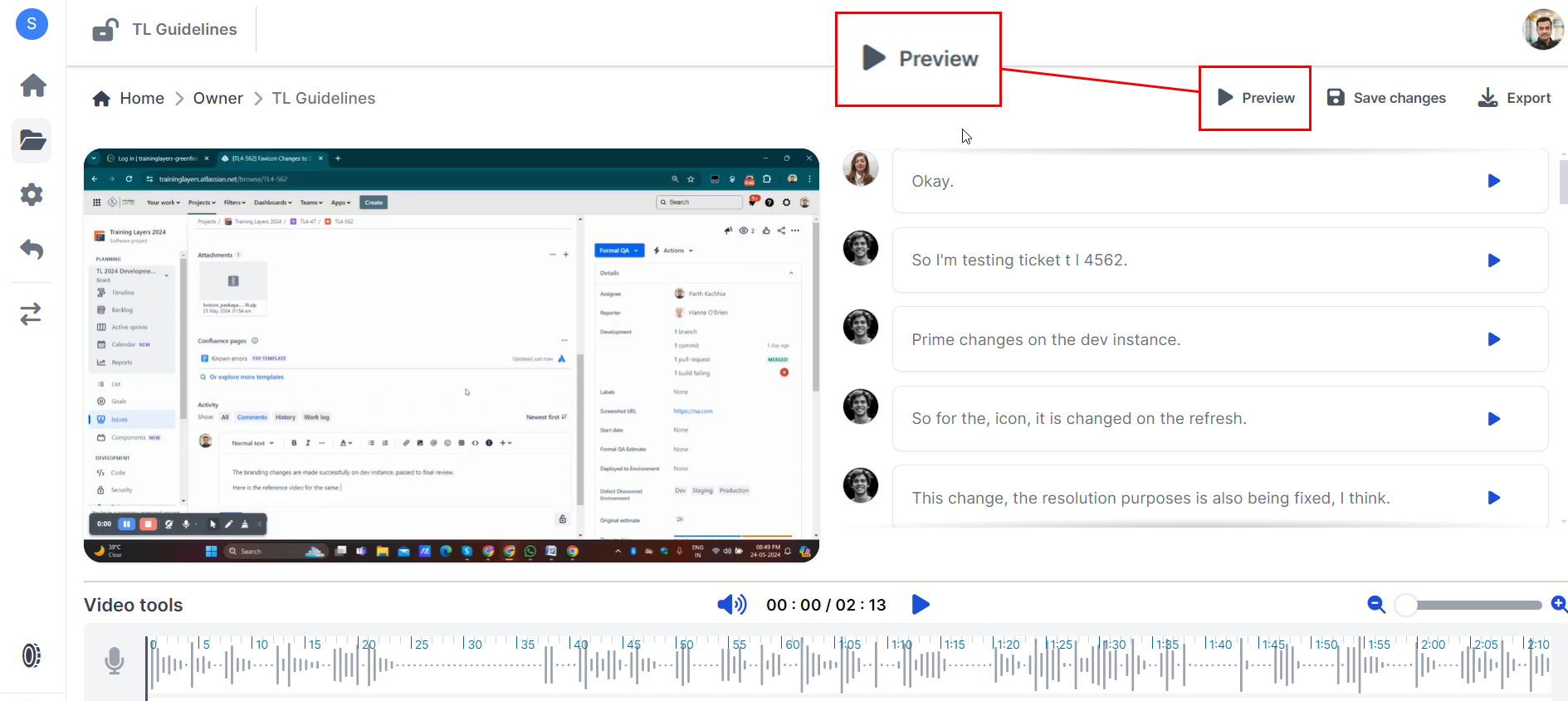
Select "Preview to Complete"
- In your project dashboard, find and click on the option labeled "Preview to Complete" or similar.
Review Final Video - The system will generate a preview of the entire edited video. Watch this preview carefully to ensure all edits appear as intended.
- Make Final Adjustments (if necessary)
If you notice any issues or areas that need improvement during the preview:
Return to Editing
- Go back to the project dashboard and make the necessary changes.
Regenerate Preview
- After making adjustments, click on "Preview" again to generate a new preview.
Troubleshooting
If you encounter any issues while using the "Preview to Complete" feature, here are some common solutions:
Preview Issues?
- Ensure you have a stable internet connection during the preview generation process.
- Check if there is sufficient storage space on your device for downloading previews and final videos.
Edits Not Applied?
- Make sure you saved all changes before initiating the preview process.
- Refresh your project dashboard if changes do not appear immediately.
Need Help?
If you need further assistance with using the "Previewing and Finalizing your edited video" feature in Sequence, feel free to reach out to our support team via support@adoptsequence.com.