Exporting Original Video without Audio
In Sequence, not only can you edit your videos with our powerful AI tools, but you also have the option to export the original video file you uploaded without its audio. This feature allows you to download the unaltered version of your video, excluding its original audio, at any time.
Why Export the Original Video (No Audio)?
Exporting the original video without its audio can be useful for several reasons:
- Silent Footage: Utilize the video footage without background noise or unwanted sounds.
- Custom Audio: Add custom audio tracks or voice overs later without interference from the original audio.
- Focus on Visuals: Use the video in contexts where only the visual content is needed, such as background loops or visual aids.
Steps to Export the Original Video (No Audio)
Navigate to Your Project
- Log into your Sequence account.
- Select the space and folder where your project is located.
- Open the specific project that contains the video you want to export.
Locate the Original Video
- In your project dashboard, find the section where your uploaded video is displayed.
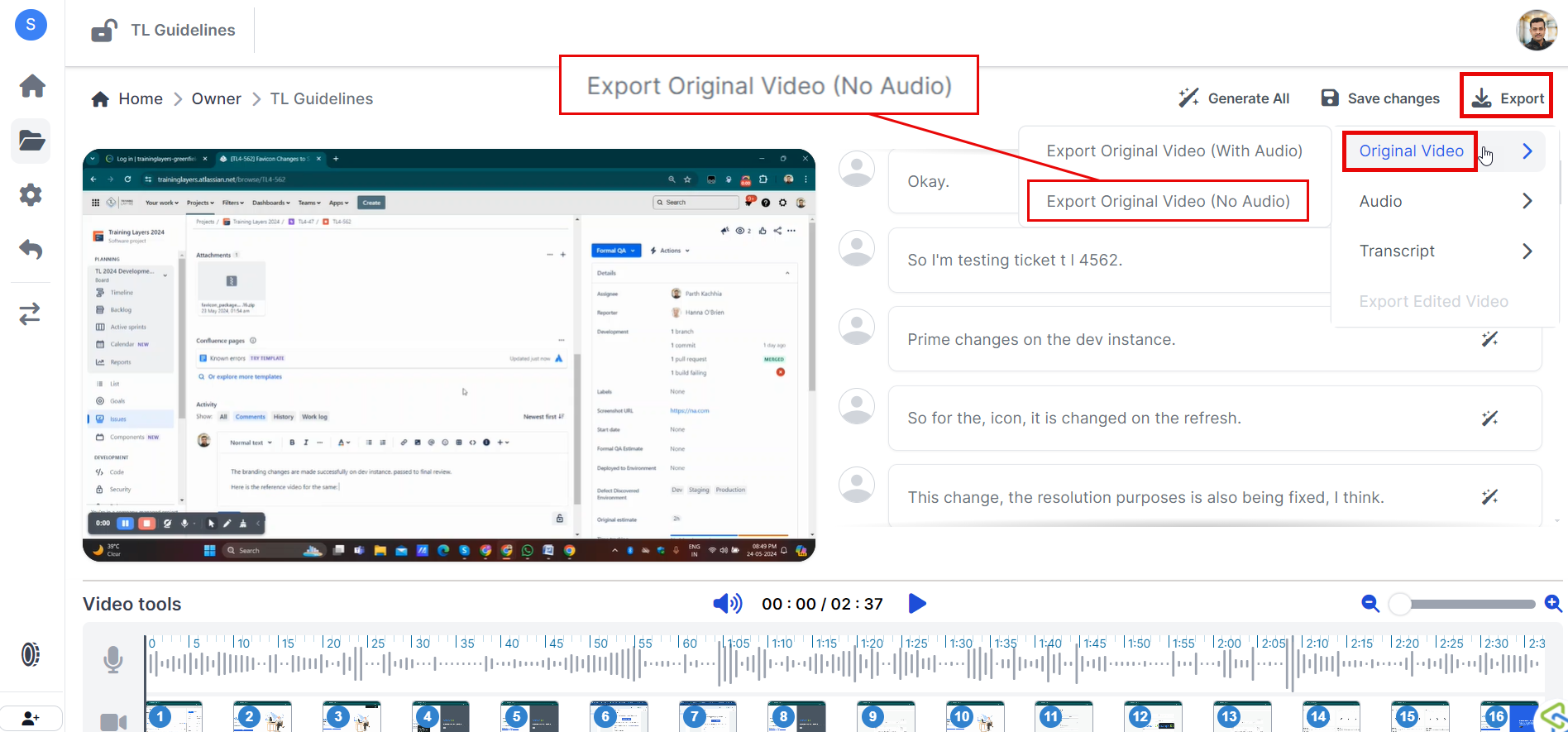
Export the Original Video (No Audio)
- Look for an option labeled "Export Original Video (No Audio)" > Export button.
- Click on this option to initiate the download of your original video file without audio.
Important Notes
- The exported video will be in its original format (MP4) and quality, exactly as it was when you first uploaded it, but without any audio.
- No edits or changes made within Sequence will be applied to this exported file.
Troubleshooting
If you encounter any issues while exporting your original video, here are some common solutions:
Download Issues?
- Ensure you have a stable internet connection.
- Check if there is sufficient storage space on your device.
File Not Found?
- Make sure you are in the correct project and looking at the right video file.
Need Help?
If you need further assistance with exporting your original video without audio, feel free to reach out to our support team via support@adoptsequence.com.