Editing Text Blocks in Sequence
Sequence offers a powerful feature that converts speech to text, breaking down your video's audio into manageable text chunks. This guide will explain how to edit these text blocks to customize your video's content according to your needs.
Why Edit Text Blocks?
Editing text blocks can enhance your video in several ways:
- Accuracy: Correct any inaccuracies in the automatic transcription.
- Customization: Tailor the text to better match your desired script or message.
- Clarity: Improve the clarity and readability of the text for better audience understanding.
Steps to Edit a Text Block
- Upload Your Video OR record video with chrome extension
- Speech-to-Text Conversion
Once the video is uploaded, Sequence will automatically convert the audio into text chunks:
- Automatic Transcription: The system generates text blocks based on the spoken content in your video.
- Navigate to Project Dashboard
In the project dashboard, you will see the transcribed text chunks aligned with your video timeline. - Edit Text Blocks
You can now edit these text blocks to match your desired script:
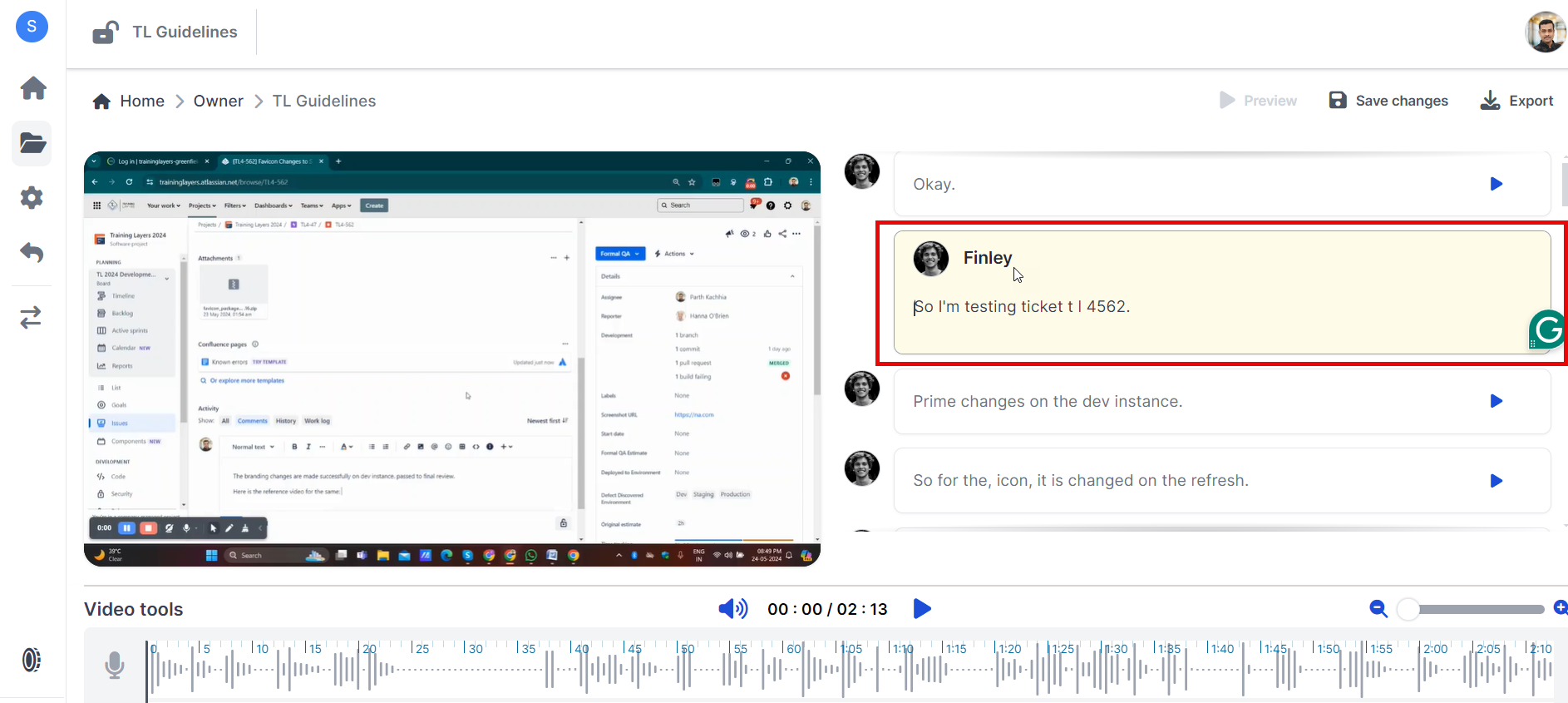
- Select a Text Block
- Click on the text block you wish to edit. This will open an editing interface for that specific chunk.
- Edit the Text
- Modify the text as needed. You can correct transcription errors, rephrase sentences, or add additional information.
Troubleshooting
If you encounter any issues while editing text blocks, here are some common solutions:
Editing Issues?
- Ensure you have a stable internet connection during the editing process.
- Check if all text chunks are correctly generated and visible in your project dashboard.
Changes Not Saving?
- Make sure you click "Save" after editing each text block.
- Refresh your project dashboard if changes do not appear immediately.
Need Help?
If you need further assistance with editing text blocks in Sequence, feel free to reach out to our support team via support@adoptsequence.com.